CUDA for NVIDIA (opt-in mirror)
NVIDIA GPU support on InterGenOS is mirror-only and opt-in. The driver
never ships on the ISO and never installs without an explicit action on your
part. This page covers what the nvidia package provides, how the CUDA
runtime fits in, and how to install it on a machine that has NVIDIA hardware.
The design here follows the same standard as the rest of the system: a machine you understand, can modify, and can trust. Every default in this package is chosen so that the fewest things run, the signing chain is enforced, and every load-bearing flag is visible at an obvious location you can audit.
What ships and what does not
The nvidia package (production branch 580.159.04) bundles two pieces:
- The open GPU kernel modules (
open-gpu-kernel-modules), dual-licensed GPLv2/MIT. These are shipped as source to/usr/src/, then built and signed against your installed kernel on your own machine at install time. - The closed-source NVIDIA userspace libraries extracted from the official
NVIDIA
.runinstaller, including the GLX/EGL vendor libraries and the CUDA driver runtime that ships inside the driver package.
This package is the GPU driver, which includes the CUDA driver runtime and the userspace tooling NVIDIA bundles with it:
nvidia-smi— device query and monitoringnvidia-settings,nvidia-xconfignvidia-modprobe(installed setuid root so it can create/dev/nvidia*device nodes on first access)nvidia-cuda-mps-controlandnvidia-cuda-mps-server— the CUDA Multi-Process Service control planenvidia-debugdump,nvidia-bug-report.shprime-run— the PRIME offload wrapper for hybrid laptops
The CUDA Toolkit (the nvcc compiler, the math libraries, the samples) is
a separate component and is not packaged for InterGenOS at all — not by this
package and not by any other. That was confirmed against the package tree with
three differently-shaped searches (a path glob, a package-name field search, and
a description search), all of which came back empty. What the driver gives you is
the CUDA driver runtime that compiled CUDA programs link against at execution
time; to compile CUDA source you supply the Toolkit yourself.
Hardware floor and install gate
NVIDIA support requires Turing (RTX 20xx / GTX 16xx) or newer. The open
kernel modules depend on GSP firmware, which is only available on Turing and
later silicon. Pre-Turing cards fall back to the in-kernel nouveau driver,
which is already shipped.
Installation is gated on hardware. The package declares a PCI vendor
requirement of 10de (NVIDIA), and the installer (Forge) and TUI skip it
unless a display controller with that vendor ID is present on the target. This
gate is fail-closed: if the GPU vendor cannot be detected, the package is
skipped rather than installed. This prevents the driver from landing on a
machine that cannot use it, which would otherwise break the desktop session.
You can always add it later by hand once you know your hardware qualifies.
Installing the driver
On a machine with qualifying NVIDIA hardware:
sudo pkm install nvidia
Three things happen around this install that are specific to this package:
-
EULA acceptance. The NVIDIA closed userspace is covered by NVIDIA’s license. Before the install proceeds,
pkmruns an EULA helper that checks the system-wide marker at/var/lib/intergen/eula/nvidia-userspace.accepted. If the marker is missing, the helper presents NVIDIA’s license — bundled with this exact driver version, staged at build time from theLICENSEfile inside NVIDIA’s own installer — in a full-screen pager for you to read, then accept or decline (declining aborts the install). Nothing is fetched over the network: the license text ships with the driver, so the gate works the same offline, and a missing or empty text fails the install closed rather than waving it through. -
Build and sign on your machine. The post-install hook compiles the open kernel modules against your running kernel, then signs each
nvidia*.kowith your per-machine Machine Owner Key (MOK). This is a DKMS-style flow wired directly intopkmhooks rather than relying on thedkmstool. The same rebuild runs automatically on every kernel upgrade, chained from the kernel package’s own post-install hook. -
A reboot is required before the driver is live. The package declares this, so
pkmtells you rather than leaving you to guess. The open kernel modules install behind thenouveaublacklist and cannot load until the machine restarts; whatever driver is currently running keeps serving the display until then. An install that appears to “do nothing” until you reboot is the expected behaviour, not a failure.
The kernel enforces CONFIG_MODULE_SIG_FORCE=y: every loadable module must
carry a valid signature from a trusted key or it is rejected. NVIDIA’s modules
are not exempt. The MOK that signs them is generated by Forge at install time
and enrolled at the firmware level on first boot through MokManager. See
Verifying the install for the recovery path if the
MOK is not enrolled.
CUDA runtime and Unified Memory
CUDA workloads depend on the nvidia-uvm kernel module, which provides Unified
Memory support through Heterogeneous Memory Management (HMM). HMM is enabled by
default:
options nvidia-uvm uvm_disable_hmm=0
Disable HMM only if you have hit a specific HMM-related bug. CUDA Unified Memory requires it.
For compute hosts that run long-lived CUDA jobs, the persistence daemon keeps driver state resident so the GPU does not tear down and re-initialize between jobs:
-
nvidia-persistenced.serviceis shipped disabled by default. It runs as a system user but holds persistent/dev/nvidiactlhandles, so desktop users do not need it. Compute users opt in:sudo systemctl enable --now nvidia-persistenced.service
The CUDA Multi-Process Service (MPS) control tools
(nvidia-cuda-mps-control, nvidia-cuda-mps-server) are installed for users
who run multiple CUDA processes that need to share a single GPU context.
Kernel cmdline and Wayland
The package ships /etc/kernel/cmdline.d/40-nvidia.conf with:
nvidia-drm.modeset=1 nvidia-drm.fbdev=1
nvidia-drm.modeset=1enables Kernel Mode Setting, which Wayland compositors require. GDM reads/sys/module/nvidia_drm/parameters/modeset; with this set it picks Wayland rather than falling back to X11.nvidia-drm.fbdev=1provides a kernel framebuffer device, required on Linux 6.11 and newer. InterGenOS ships kernel 6.18.10, so this is non-negotiable.
These flags live on the kernel cmdline rather than in modprobe.d so they are
auditable at the most discoverable place:
cat /proc/cmdline
The fragments under /etc/kernel/cmdline.d/ are merged into the signed UKI
.cmdline section at UKI rebuild time. The desktop shipped today is GNOME 49
on Wayland.
To add your own kernel parameters, drop a file such as
/etc/kernel/cmdline.d/90-user.conf, then trigger a UKI rebuild:
sudo pkm reinstall linux-kernel
Modprobe-layer policy
Boot-affecting flags live on the cmdline; modprobe.d is reserved for
module-load policy. The package ships
/etc/modprobe.d/nvidia-nouveau-blacklist.conf:
blacklist nouveau
options nouveau modeset=0
This belt-and-suspenders pattern blocks nouveau from loading and from
attaching via the early-KMS auto-detect path, so it cannot fight NVIDIA for the
framebuffer.
Optional module options go in a file like /etc/modprobe.d/nvidia-extras.conf.
The most common is the GSP-firmware workaround for Ampere mobile (RTX 30xx)
laptops whose GSP firmware prevents the open modules from loading:
options nvidia NVreg_EnableGpuFirmware=0
Do not use this on desktop Ampere or any Ada/Blackwell hardware; those need GSP. Driver 580 has working GSP firmware for Ada and Blackwell laptops.
Hybrid graphics (laptops)
Most NVIDIA laptops are dual-GPU (“Optimus” / hybrid): an Intel iGPU for power-efficient desktop work and an NVIDIA dGPU for heavy workloads. The package supports all three BIOS GPU modes (hybrid, iGPU-only, dGPU-only).
By default the package installs /etc/environment.d/91-nvidia-wayland.conf,
which routes the system-wide compositor and OpenGL/GLX apps to NVIDIA. This is
the right default for users who installed the driver because they want the
dGPU active, but it keeps the dGPU awake whenever the display is on, which
costs battery.
To run the desktop on Intel and use NVIDIA only on demand, remove that file and launch GPU-heavy apps through the offload wrapper:
sudo rm /etc/environment.d/91-nvidia-wayland.conf
# log out and back in, then:
prime-run <application>
GNOME 49 also exposes this in the GUI: right-click a .desktop entry and
choose “Launch using Discrete Graphics Card.”
Suspend, resume, and hibernate
Three services are shipped enabled because lid-close/lid-open is expected to work on a laptop and NVIDIA suspend/resume otherwise breaks graphics:
nvidia-suspend.service— saves VRAM before suspendnvidia-resume.service— restores VRAM after resumenvidia-hibernate.service— saves VRAM to swap at hibernate
On a desktop tower that never suspends, or to keep running daemons to a minimum (fewer services is fewer attack surfaces), you can disable any or all of them:
sudo systemctl disable --now nvidia-suspend.service
sudo systemctl disable --now nvidia-resume.service
sudo systemctl disable --now nvidia-hibernate.service
Verifying the install
After install and reboot, confirm the modules are loaded, signed, and that
nouveau is absent:
cat /sys/module/nvidia_drm/parameters/modeset      # expect: Y
cat /sys/module/nvidia_drm/parameters/fbdev        # expect: Y
lsmod | grep -E 'nvidia|nouveau'                   # nouveau should be absent
modinfo -F signer /lib/modules/$(uname -r)/extra/nvidia/nvidia.ko
# expect: InterGenOS Machine Owner Key
nvidia-smi                                          # device query
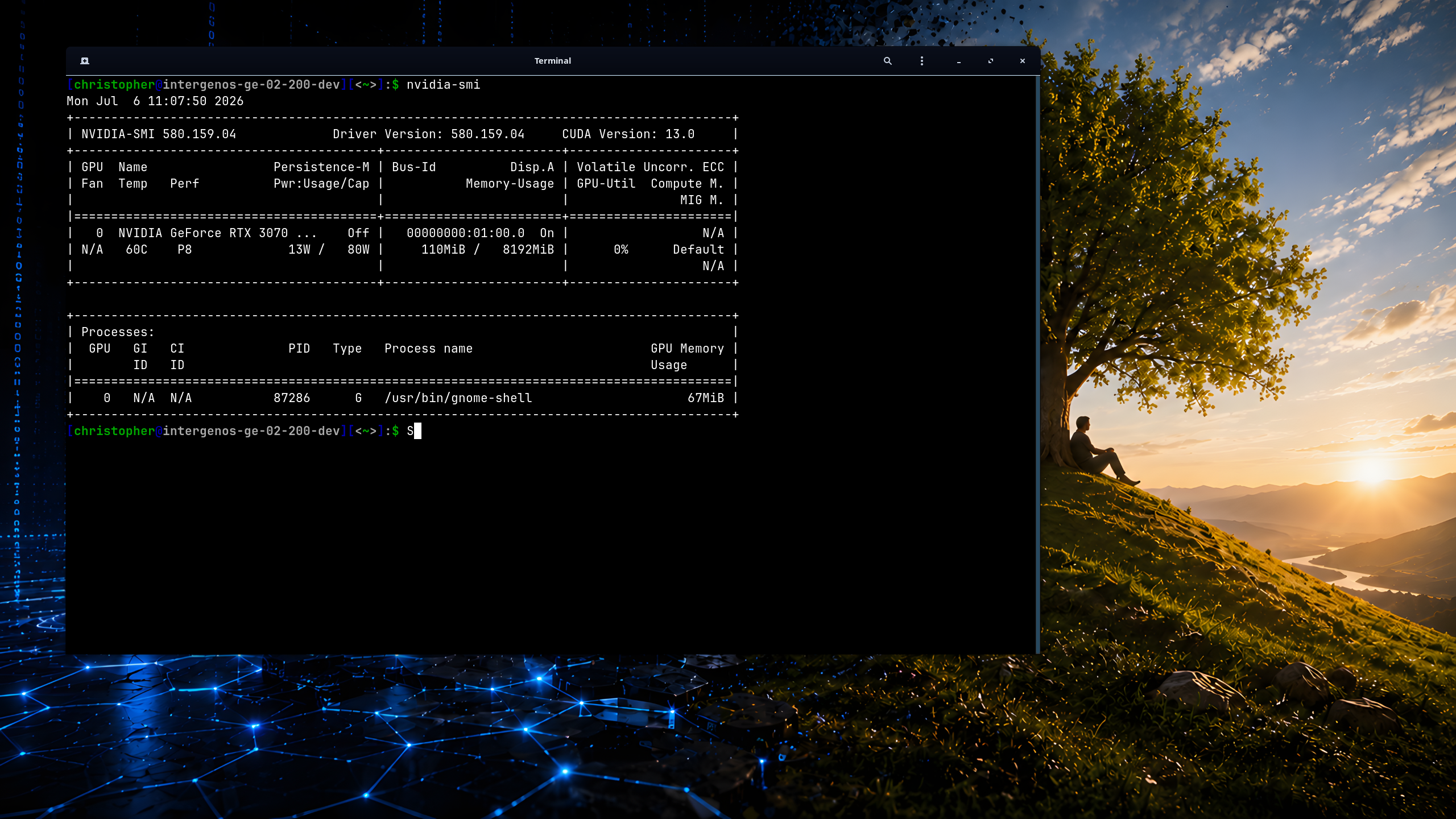
The driver working on real hardware — an ASUS ROG laptop with a GeForce RTX 3070, running under enforced Secure Boot. The open kernel modules were built and signed on the machine with its own Machine Owner Key at sudo pkm install nvidia time, so they load even though the kernel refuses anything unsigned; nvidia-smi reports driver 580.159.04 and CUDA 13.0, and /usr/bin/gnome-shell is right there in the process list — the desktop compositor itself is drawing on the discrete GPU. That Machine Owner Key is the same key Secure Boot verifies at every boot; see Security Verification.
A clean module load is silent in the kernel log. The failure case to watch for is:
nvidia: module verification failed: signature and/or required key missing
which means the MOK is not enrolled. Re-stage enrollment, reboot, and accept it at the MokManager prompt:
sudo mokutil --import /var/lib/intergen/mok/mok.der
You can confirm Secure Boot and MOK state at any time:
mokutil --sb-state         # is Secure Boot on?
mokutil --list-enrolled    # is the InterGenOS MOK enrolled?
Removing the driver
sudo pkm remove nvidia
Removal stops the NVIDIA services, unloads the modules, purges the built .ko
files, removes the shipped cmdline and modprobe fragments, and triggers a UKI
rebuild so the signed .cmdline section no longer carries the NVIDIA
parameters. On the next boot, nouveau is the active GPU driver again.