The AI Assistant
InterGenOS ships with InterGen, a local AI assistant that runs entirely on your own machine. It answers questions about your system, helps with shell, configuration, and code tasks, and never sends your data off the box by default. There is no cloud account, no API key, and no telemetry.
InterGen is a system assistant. Its strength is knowing your machine, not the
whole world. You open it from the Applications menu or from any terminal with
the intergen command.
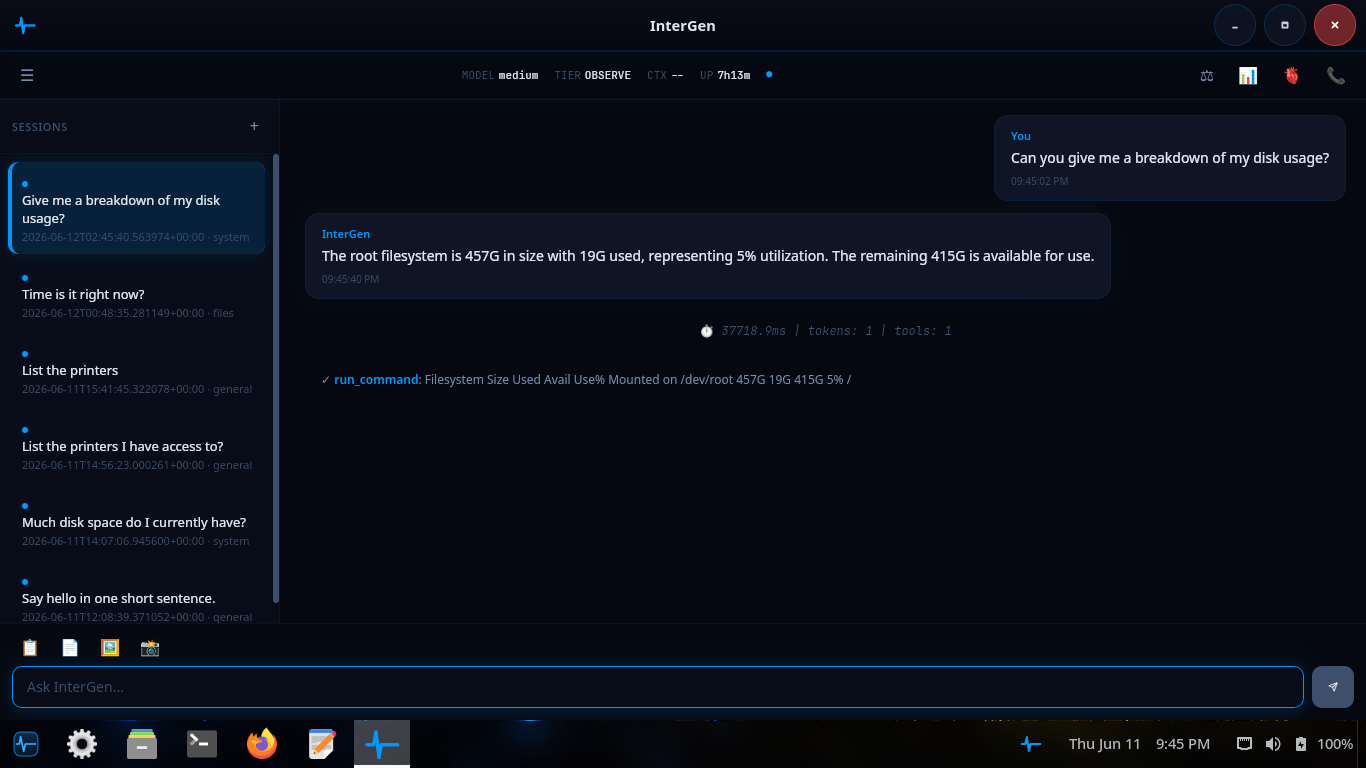
InterGen answering a disk-usage question: it runs the underlying command, then reads the result back in plain English.
What it does
You talk to InterGen in plain language. It recognizes intent, runs the right command, and reports back. Typical requests:
- “How much free space is on my root partition?” — runs the right
dfinvocation and summarizes the answer. - “What’s my current IP address?” — a direct
iplookup plus a plain-English summary. - “Write me a systemd timer that runs
backup.shevery Sunday at 03:00.” — drafts the unit and timer files, then asks before installing. - “Why did sshd fail to start after I edited the config?” — reads the relevant
journalctloutput, summarizes the error, and suggests a fix. - “Install htop” — recognizes the intent and asks you to confirm before
running the install through
pkm, the InterGenOS package manager.
Local-first by design
Every model InterGen uses runs on your own CPU and GPU. Nothing about your prompts, your files, your configuration, or your machine identity leaves the machine by default. This is the InterGenOS posture in one feature: a machine you understand, can modify, and can trust.
The trade-offs are stated honestly:
- Local models are smaller than frontier cloud models, so answers on the hardest tasks are less sharp.
- First use downloads the model (roughly 1.2 GB for the model that ships today; larger on a machine that runs a bigger tier). After that, no network is needed.
- If you ask about brand-new software the model has not seen, it tells you so rather than guessing.
For cases where you want the depth of a frontier model, the optional Phone-A-Friend (Frontier/Cloud Escalation) path lets you opt in to a cloud provider on a per-request basis. It is off by default and never silent: InterGen asks before reaching out, and the outbound payload is scanned first.
How it scales to your hardware
InterGen is hardware-adaptive by design: at startup it inspects the machine’s GPU and its dedicated video memory, and runs the largest shipped model tier that hardware can hold. System memory is not part of the decision — a machine with no discrete GPU runs the 2B floor regardless of how much RAM it has, because the larger models are unusably slow without GPU acceleration. Unknown or unreadable capability always resolves downward, never upward.
- The 2B floor (InternVL3.5-2B, roughly 1.2 GB quantized) runs on every machine as the verified-everywhere default — a compact model chosen for usable latency on essentially any 64-bit machine, including CPU-only laptops. On the floor, tool dispatch is code-owned: the model supplies language, deterministic code decides every action.
- The 9B tier (Qwen3.5-9B, about 5.5 GB) runs on a machine with a discrete GPU carrying roughly 7 GB or more of dedicated video memory — enough to hold the model, its vision projector and its working buffers. There InterGen runs the 9B natively and unlocks native tool-calling, still gated by the safety classifier and Sentinel. A machine with an integrated GPU, or a discrete card too small to hold the larger model, runs the 2B floor.
A large (~35B) tier for high-memory workstations with a discrete GPU ships as well: Qwen3.5-35B-A3B, a mixture-of-experts model of about 21 GB, is catalogued, SHA-256-pinned in the signed model manifest, and selected on a card carrying roughly 22 GB or more of dedicated video memory. Native tool-calling is not unlocked on that tier — the 9B carries the only shipped native lane — so a machine serving the 35B decides actions through the code-owned path. The 2B floor never leaves; it is the locked-down path every machine can always fall back to.
A small embedding model ships alongside the assistant to power its semantic-matching layer.
InterGen can see
InterGen’s on-device model is a vision-language model: it can analyze an image as well as text. Images are acquired only through a dedicated capture tool — a desktop screenshot or a webcam frame — which runs at the CONFIRM tier, so InterGen pauses and asks for your approval before every capture. The image is analyzed by the local model and never leaves the machine, and it is treated as untrusted input (wrapped with its provenance before it reaches the model, the same ingress boundary Sentinel enforces) so content hidden in an image cannot redirect the assistant.
What it can and can’t do (the safety chain)
Every action InterGen proposes is classified before it runs:
- AUTO — read-only operations like
ls,df, andjournalctl. Run immediately, with the result shown to you. - CONFIRM — anything that changes state, such as
systemctl restart, apkm install, or editing a config file. InterGen pauses and shows exactly what it intends to do. Nothing runs until you approve it. - BLOCKED — destructive or security-bypass operations such as
rm -rf /or reformatting the root disk. InterGen refuses and explains why.
On the 2B floor, the model does not choose the tool. The decision to run a command — and the exact arguments — is made by InterGenOS’s own deterministic router, not by the language model. On the 9B tier the model may propose a tool call, and every proposal still passes the same AUTO / CONFIRM / BLOCKED classification before it can run, so the gate does not move. The model reads your request and explains the result in plain language; a code path selects which tool to run and constructs the command, then classifies it AUTO / CONFIRM / BLOCKED as above. A deterministic dispatch path is auditable and testable in a way a model’s free choice is not, and every proposed command passes the same AUTO / CONFIRM / BLOCKED classification before it can run.
The classifier is conservative by design. Nothing that changes the system runs without explicit approval, and the most dangerous commands cannot run at all. See Constraining the assistant for how the safety chain is configured, and Privacy for the data boundaries.
InterGen Sentinel
InterGen Sentinel is the pluggable security scanner that guards InterGen’s interactions with the outside world. It inspects content crossing two boundaries: data returned from external and MCP tools (ingress) and content about to be sent off-device (egress). Both surfaces are scanned by default.
The default configuration runs two local stages: a fast local-rules pass and an optional deep pass backed by a small on-device classifier model. For deeper analysis you may opt in to a cloud scanner backed by one of six providers — Claude (Anthropic), Gemini (Google), Copilot (Microsoft), ChatGPT (OpenAI), Grok (xAI), or DeepSeek. No cloud provider is configured by default, so the default install scans entirely on-device.
Other apps can talk to it
InterGen exposes a narrow D-Bus interface, so the text editor, the terminal, the system settings panel, and third-party apps can request code completion, log summarization, or semantic search over IPC. Only a small set of vetted interfaces is exposed, which keeps a local unprivileged application from driving arbitrary code execution.
InterGen is also a Model Context Protocol (MCP) client. It can connect to local MCP servers to acquire new capabilities while preserving the boundary between the assistant’s core runtime and the tool-execution environment.
Turning it on or off
InterGen is off by default. You opt in at install time through the assistant toggle in Forge, the InterGenOS installer, or at any time later by running:
intergen setup
This downloads the model, enables the intergen.service unit globally, and starts
the assistant. To opt out:
systemctl --global disable intergen.service
The model files stay on disk under /var/lib/intergen/models/ in case you want
to re-enable later without re-downloading.
In this section
- Overview — how InterGen fits the rest of the system
- Explanations — how the assistant reasons about your machine
- Teaching mode — learning alongside the assistant
- Constraining the assistant — tightening the safety chain
- Privacy — the data boundaries, in detail