Switching to InterGenOS
If you are coming from Debian, Ubuntu, Fedora, Arch, or another mainstream Linux distribution, this page maps what you already know onto how InterGenOS does things. The goal is not to convince you that everything is different. Most of it is not. The differences that matter are deliberate, and they all serve the same purpose: a machine you understand, can modify, and can trust.
Security is not first. It is only. Every default on this page exists because of that posture.
What is the same
InterGenOS is a Linux distribution. The kernel, the shell, the GNU coreutils, systemd, OpenSSH, and the GNOME desktop all behave the way you expect. Your shell scripts, your dotfiles, your editor, your terminal habits, and the standard command-line tools carry over without translation.
The desktop that ships today is GNOME 49 on Wayland. If you have used recent GNOME on any other distribution, the Activities overview, the app grid, Quick Settings, and the Settings app are all where you left them. The default icon theme is InterGenOS’s own first-party theme; alternates (Papirus, WhiteSur, Tela, Fluent, and others) are one click away in the first-boot Welcome app.
InterGenOS is built from source on the Linux From Scratch (LFS 13.0) and Beyond Linux From Scratch (BLFS 13.0) foundation. That is a build-time fact, not something you have to think about while using the system day to day.
What is different, and why
Package management uses pkm, not apt/dnf/pacman
InterGenOS ships its own package manager, pkm. It covers the operations you already do under other names, and it accepts the command names you would naturally reach for. The dispatch resolves aliases to a canonical command, so behavior is identical regardless of which name you type.
| You are used to (apt / dnf / pacman) | On InterGenOS |
|---|---|
apt update / dnf check-update / pacman -Sy | sudo pkm sync (also update, refresh) |
apt upgrade / dnf upgrade / pacman -Su | sudo pkm upgrade |
apt install <pkg> / pacman -S <pkg> | sudo pkm install <pkg> |
apt remove <pkg> / pacman -R <pkg> | sudo pkm remove <pkg> (also uninstall) |
apt search / dnf search / pacman -Ss | pkm search <term> (also find) |
apt show / dnf info / pacman -Si | pkm info <pkg> (also show) |
dpkg -l / pacman -Q | pkm list installed (also ls) |
dpkg -S <file> / pacman -Qo <file> | pkm provides <file> |
debsums / rpm -V | sudo pkm verify <pkg> (or pkm verify --all) |
One important distinction from apt: pkm sync only refreshes the local index. It does not change anything on disk. pkm upgrade is the command that actually installs newer versions. Nothing upgrades on a timer — though a daily check does notify you when upgrades are available (it installs nothing, and you can disable it; see below).
For the full command surface, see The Package Manager.
Proprietary and third-party apps come through pkm install
Software that other distributions reach for via a vendor .deb, a third-party repository, or the AUR is installed through the same pkm install command as everything else. InterGenOS ships a small download-helper for each, and pkm routes to it automatically — there is no separate command to remember:
sudo pkm install chrome       # Fetches from Google, installs via pkm
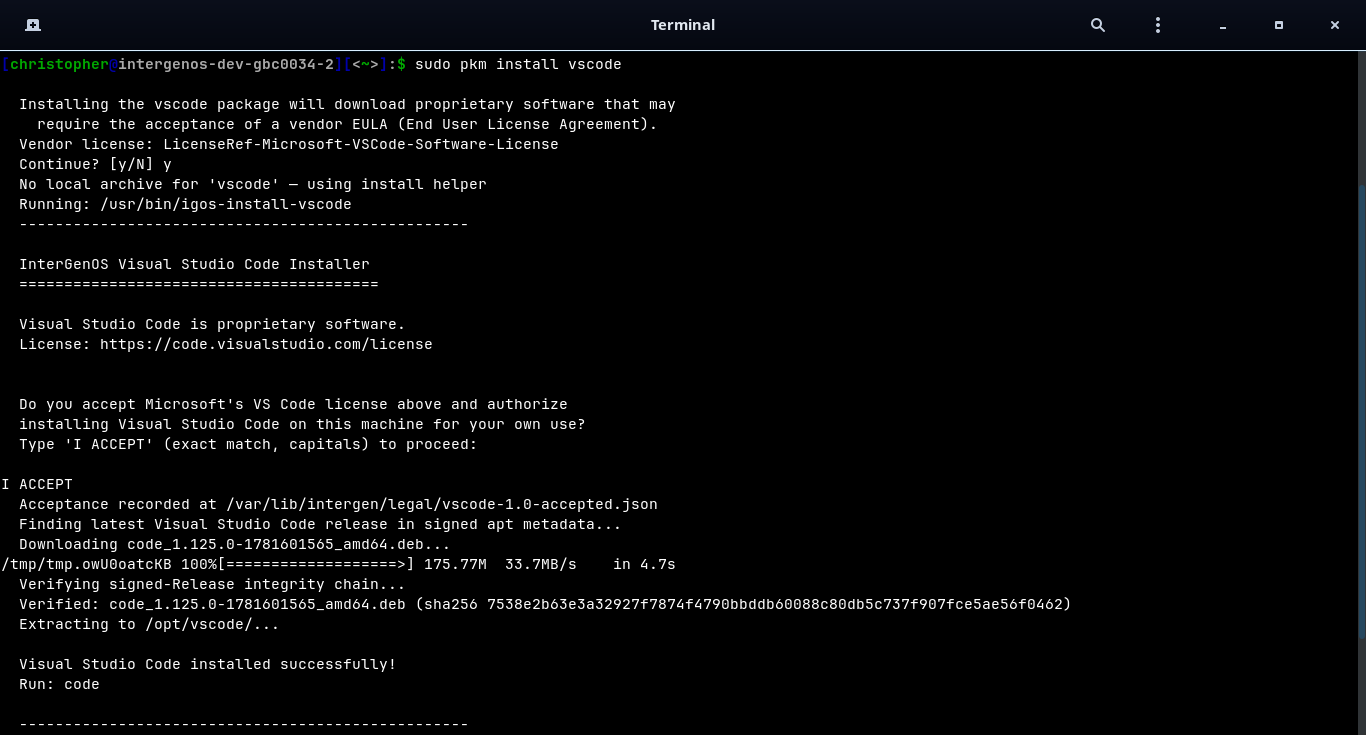
sudo pkm install vscode       # Fetches from Microsoft, installs via pkm
sudo pkm install claude-code  # Fetches from Anthropic, installs via pkm
Because these are proprietary, pkm will not install one silently. The install stops for an explicit, interactive license acceptance — you cannot complete it by accident:
pkmfirst names the vendor license and asksContinue? [y/N].- The vendor’s own installer then prints its license and requires you to type
I ACCEPT(exact match, capitals) to proceed. Anything else aborts the install.
Only after you accept does the helper download from the vendor, verify the download against the vendor’s signed metadata (a SHA-256 integrity check), and install. Your acceptance is recorded under /var/lib/intergen/legal/, so a later reinstall of the same version does not prompt again.
No background network activity
This is the largest behavioral change for most people switching:
- No background refresh. The system does not reach out to the network until you explicitly run
pkm syncorpkm install. - No telemetry. There is no popcon, no countme equivalent, no usage analytics.
- No unattended upgrades. The system stays exactly as it is until you command a change.
- A daily update check, opt-out. One timer (
pkm-check-updates.timer) compares your installed packages against the index you last synced and shows a count of available upgrades (a tray indicator and a login message). It downloads and installs nothing, reaches no further than your local index, and turns off withsudo systemctl disable --now pkm-check-updates.timer.
If a package ships under a non-OSI license, pkm halts and shows a banner requiring your explicit consent before downloading.
How that compares to the package managers you may know:
| Feature | pkm (InterGenOS) | apt (Debian/Ubuntu) | pacman (Arch) | dnf (Fedora) |
|---|---|---|---|---|
| Trust model | Signed index | Signed index (InRelease) | Signed index / per-package sigs | Signed metadata / per-package sigs |
| Auto-updates | Never | Configurable | Configurable | Configurable |
| Telemetry | None | Popcon (opt-in) | None | countme (opt-out/opt-in) |
| Non-OSI license | Halts for consent | Relies on repo separation | AUR / user discretion | Relies on repo separation |
A signed boot chain you own (Secure Boot optional)
On other distributions, Secure Boot is often something you disable to get work done, or a chain you do not control. InterGenOS ships a signed boot chain where the trust anchor is your own MOK key, generated per machine by the installer, Forge: signed shim, MOK-signed GRUB, and a MOK-signed Unified Kernel Image. Secure Boot enforcement is optional — a fresh install ships with it off, and you can enable it (and enroll your MOK) on hardware that supports it. dm-verity seals the live install image.
If you plan to enable Secure Boot, you set the MOK enrollment password during install and confirm the enrollment once at first boot; either way the machine boots through a chain you can audit. See the Forge installer guide.
Transparent boot, no splash
There is no Plymouth splash screen hiding the boot. You watch the kernel hand off to systemd and every service report [OK] or [FAILED]. If a mount breaks or a module misbehaves, you see it the moment it happens. Reading boot output is a real practice for noticing a compromise or a hardware change, so the system gives you that surface rather than covering it.
A local AI assistant, fully offline
InterGenOS ships InterGen, a tiered, hardware-detected local assistant. At setup time it probes the hardware and picks the model by GPU presence and dedicated VRAM (system RAM is reported but never decides the tier): a compact InternVL floor (about 1.2 GB) runs on every machine, down to a 4 GB laptop, and a machine with a capable discrete GPU runs a larger Qwen tier — the 9B. It runs fully offline with zero telemetry, no accounts, and no cloud round-trip. Every tool call is permission-gated; the default mode requires confirmation before anything changes system state.
Paired with it is InterGen Sentinel, a pluggable security scanner that reviews MCP tool calls before they execute. The default is local only: a deterministic rule-based scanner plus a local-Qwen-backed reviewer. Six cloud providers are strictly opt-in, and you choose which (if any) ever reaches the network: Claude (Anthropic), Gemini (Google), Copilot (Microsoft), ChatGPT (OpenAI), Grok (xAI), and DeepSeek. This opt-in cloud routing is called Phone-A-Friend (Frontier/Cloud Escalation). Schema-pinning, audit logging, and sandbox enforcement are local plumbing that applies no matter which scanner is active.
What you should know before switching
A few expectations to set (for the current release and its notes, see the main repository README):
- GNOME on Wayland is the only desktop today. Switchable desktop environments such as KDE Plasma and XFCE are on the roadmap and are not part of the current system. If you require a non-GNOME desktop right now, this is not yet the system for you.
- The package set is from-source and curated, not exhaustive. The build comprises 1000+ package templates across seven tiers (toolchain, core, base, desktop, extra, compute, ai). These counts drift as packages are added and consolidated. If a piece of software you rely on is not yet packaged, you can build it yourself in the meantime.
- The public binary mirror is live.
repo.intergenos.orgserves the signed package index and the package archives for the current release;pkminstalls and upgrades from it, and verifies the index signature on every sync.
Migrating your data and habits
Because the userland is standard, the practical migration is the ordinary one:
- Copy your home directory, dotfiles, and project files as you would between any two Linux machines (
rsync, an external drive, or your usual backup). - Reinstall applications with
pkm install <pkg>— the same command covers proprietary or third-party apps (e.g.pkm install vscode), which prompt for vendor-license acceptance the first time. - Your shell configuration, SSH keys, and Git setup carry over unchanged.
There is no in-place upgrade path from another distribution. InterGenOS is a fresh install through Forge.