Gaming & Steam
This page describes what InterGenOS provides for gaming today: the graphics foundation that ships enabled by default, the gaming stack you install on demand, and the deliberate omissions. Everything here is grounded in the shipping package set.
InterGenOS is a built-from-source Linux distribution with a security-only posture: security is not first, it is only. The goal is a machine you understand, can modify, and can trust. Gaming works the same way it works on any modern Wayland desktop — the graphics and input foundations are already in place, and the game platforms and compatibility layers are installed at your discretion.
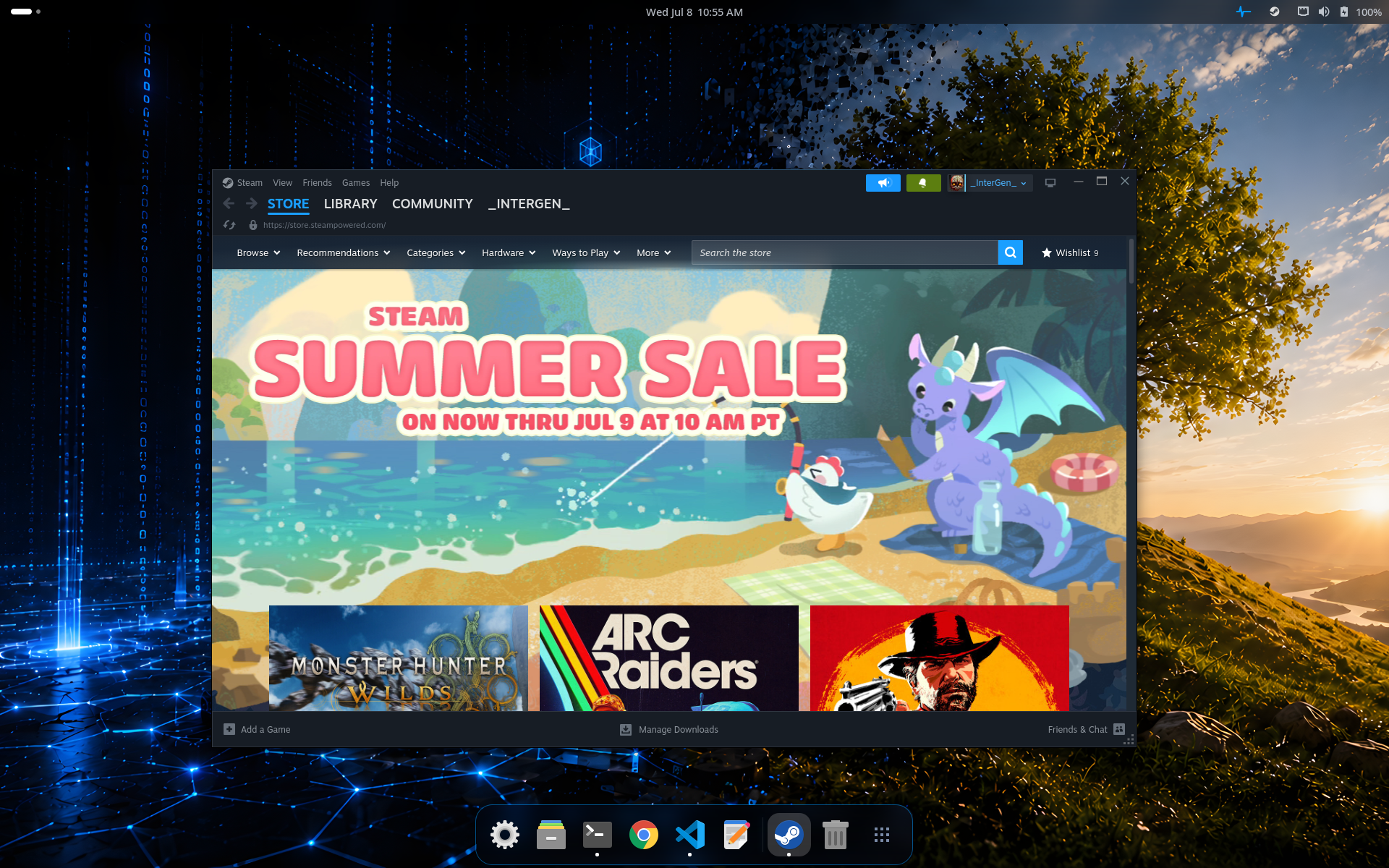
The Steam client running on the InterGenOS GNOME 49 Wayland desktop. Steam installs on demand from the signed mirror; nothing gaming-specific ships on the install media.
The Graphics Foundation
Gaming starts with the GPU stack, and that stack ships and is enabled by default.
InterGenOS runs GNOME 49 on Wayland, with the Mesa graphics stack for AMD (Radeon) and Intel (Arc, Iris, UHD) GPUs. This covers the APIs games rely on:
- Vulkan through
radv(AMD) andanv(Intel) - OpenGL / OpenGL ES through
radeonsi(AMD) andiris/crocus(Intel) - VA-API hardware video decode through
radeonsi(AMD) - OpenCL compute through
rusticl
All Mesa drivers are installed and enabled out of the box. GNOME Shell composites through OpenGL; games reach Vulkan directly through the same shipped Mesa stack. X11-only games run through Xwayland, the automatic translation layer for applications not yet ported to native Wayland.
NVIDIA GPUs
NVIDIA’s proprietary driver is not shipped by default. It is available as an explicit, user-initiated opt-in through pkm, and is offered only on hardware with an NVIDIA GPU present:
pkm install nvidia
You accept the NVIDIA license when prompted, then follow the post-install instructions for enrolling the NVIDIA kernel module with your Machine Owner Key. This matters for gaming because the module must be signed and enrolled to load under the signed Secure Boot chain that InterGenOS ships. Installing the driver also pulls in its 32-bit companion (lib32-nvidia) automatically, so 32-bit titles reach the discrete GPU — see The 32-bit runtime below. See CUDA & NVIDIA for the driver path and Encryption & Keys for the Secure Boot and Machine Owner Key details.
The Gaming Stack
The graphics foundation ships on the ISO. The gaming stack — Steam, the Windows compatibility layers, and the performance tools — is mirror-only: none of it is on the install media, and all of it installs on demand from the signed package mirror once your machine is online. This keeps the base install lean (the desktop tier is a general workstation set of several hundred packages, not a gaming bundle) while making the full stack one command away.
One command for the whole stack
The gaming meta-package pulls in the complete set — Steam, Wine, DXVK, VKD3D-Proton, GE-Proton, and the full 32-bit runtime — in a single step:
pkm install gaming
Prefer to install pieces individually? Each component below is its own package.
Steam
Steam installs through a download-helper package. Download-helpers do not bundle the vendor binary; they fetch it from the vendor over its own signed channel on first install, after you accept the license. Brave, Google Chrome, the Claude Code CLI, and Microsoft VS Code ship under this same pattern.
pkm install steam
Accept Valve’s license when prompted. The Steam helper also brings in the 32-bit runtime closure Steam needs, so the client is ready to run once the install finishes.
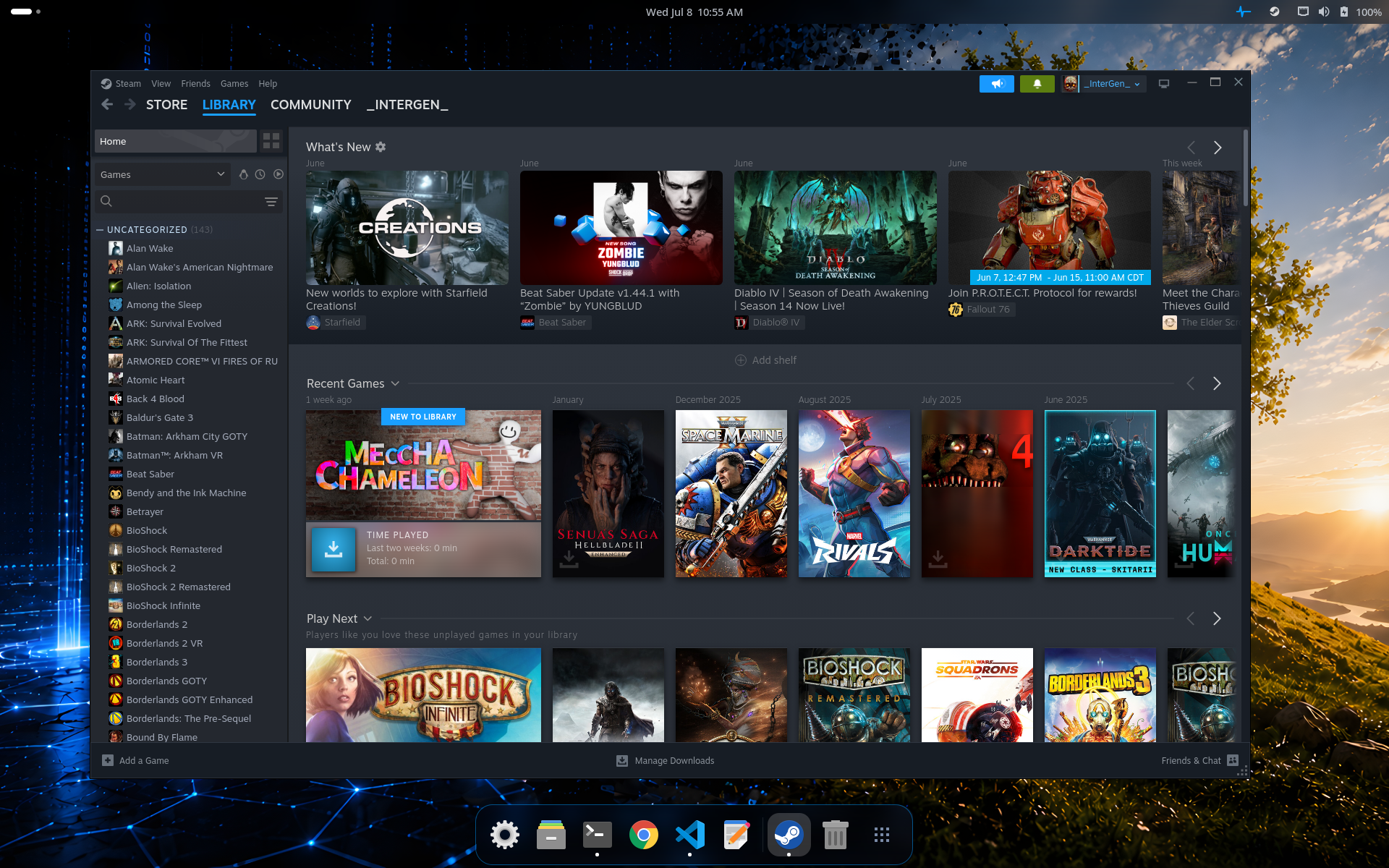
A Steam library on InterGenOS. Your games, cloud saves, and settings are the same account you use anywhere else.
Windows-game compatibility (Wine, Proton, DXVK, VKD3D-Proton)
InterGenOS packages a current Windows-compatibility layer for running Windows games:
- Wine — the Windows compatibility layer, built as a modern WoW64 (32-and-64-bit) configuration.
pkm install wine - GE-Proton — the GloriousEggroll build of Proton, Valve’s Wine-based compatibility tool tuned for games. The helper installs it system-wide and registers it as a Steam compatibility tool automatically, so it appears in Steam’s per-title “Force compatibility tool” list with no manual copying.
pkm install ge-proton - DXVK — translates Direct3D 8/9/10/11 to Vulkan, for both 32- and 64-bit titles.
pkm install dxvk - VKD3D-Proton — translates Direct3D 12 to Vulkan, for both widths.
pkm install vkd3d-proton - winetricks — installs Windows components and tweaks into a Wine prefix when a specific title needs them.
pkm install winetricks
Wine, DXVK, and VKD3D-Proton are built from source in-tree; GE-Proton is fetched by its helper from the upstream release its recipe pins.
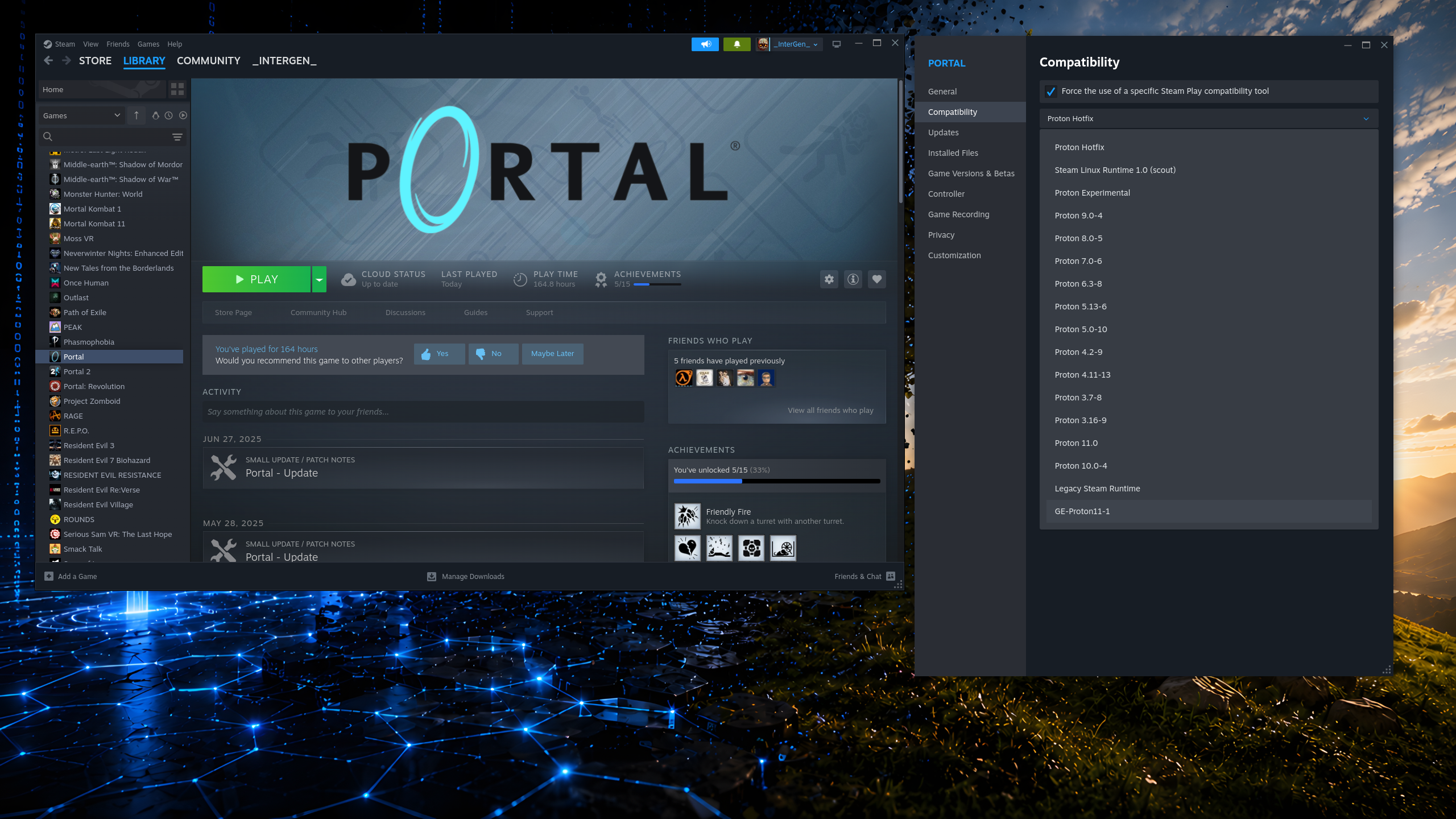
Steam’s per-title compatibility-tool selector. Once the ge-proton helper has installed GE-Proton, it appears in this list (here GE-Proton11-1) alongside Valve’s own Proton versions — no manual copying into Steam’s directories.
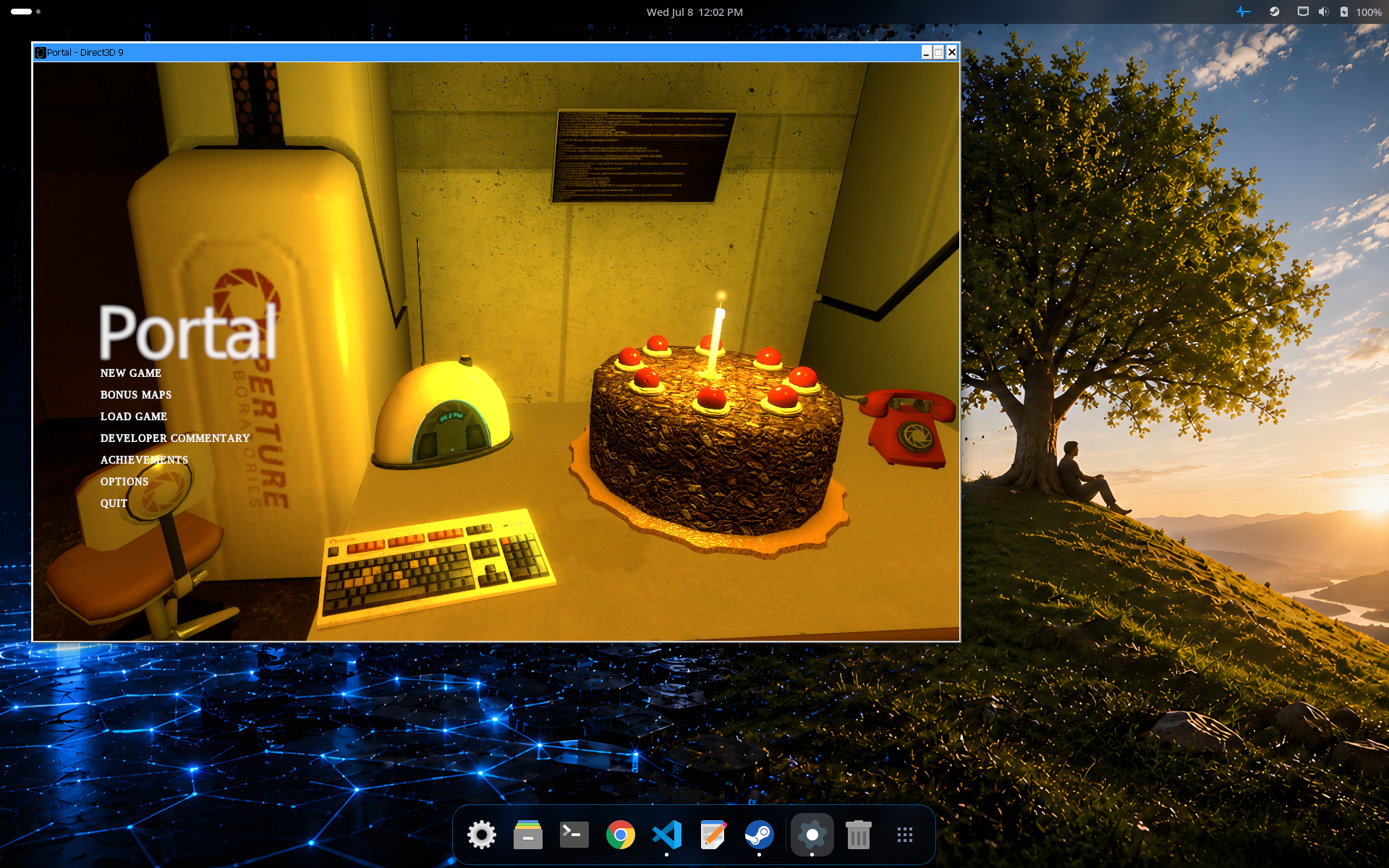
A Windows game (Portal) running through Proton on InterGenOS. The window title reports the Direct3D renderer the game requested; DXVK and VKD3D-Proton translate Direct3D to Vulkan underneath.
Performance tools
- GameMode — Feral Interactive’s daemon that applies game-optimised system settings on demand (CPU governor, scheduling) while a game runs and reverts them afterward. Launch a game through it with
gamemoderun.pkm install gamemode - Gamescope — Valve’s SteamOS micro-compositor. It gives a game its own nested compositor for clean fullscreen, integer scaling, and resolution control independent of the desktop.
pkm install gamescope
The 32-bit runtime
Many games and the Steam client itself need 32-bit (i686) libraries. InterGenOS ships a complete 32-bit runtime as a set of lib32-* packages (mirror-only), covering the graphics, audio, and system libraries a 32-bit game process links against. Installing steam or the gaming meta-package brings in the closure automatically; you do not assemble it by hand.
On AMD and Intel GPUs the open Mesa drivers serve both the 64-bit and 32-bit paths, so 32-bit acceleration reaches the discrete GPU out of the box. On NVIDIA, the default open (NVK/Mesa) 32-bit path reaches only an integrated GPU; full 32-bit acceleration on an NVIDIA discrete card needs the proprietary 32-bit driver, which is why pkm install nvidia automatically installs lib32-nvidia alongside it.
What Is Not Bundled
InterGenOS makes deliberate omissions, and several of them touch gaming:
- No Snap. The Snap daemon is not installed and not in the repository. Some games and launchers are distributed as Snaps upstream; that is not an installation path here.
- No Flatpak. Flatpak is not shipped and there is no
flatpakpackage in the repository. Third-party software installs from the signed mirror or, for vendor binaries, through the download-helper mechanism. - No auto-update. No background service downloads or applies updates without your explicit action. Game platforms with their own self-updaters operate within their own install scope; the system itself updates only when you run
sudo pkm sync && sudo pkm upgrade. - No telemetry from the OS. No component of the desktop phones home. Game platforms you install have their own privacy behavior, governed by the vendor, not by InterGenOS.
Performance Notes

A game (LIMBO) rendering full-screen through Proton. Fullscreen games composite through the Wayland display server, which eliminates tearing.
A few system characteristics are relevant to gaming and follow from the shipping design:
- Wayland compositing eliminates screen tearing. Every frame is composited through the display server. Variable refresh rate and mixed-DPI multi-monitor setups are handled by GNOME 49 without manual configuration.
- Per-window isolation, with an exception that matters here. Each Wayland application sees only its own input and pixel buffer, so one Wayland application cannot key-log another or scrape another window’s pixels, including while a game has focus. Steam and most games are X11 clients and run through XWayland, which does not carry that boundary: X11 clients share one X server and can read each other’s input and window contents, as they always could on X11. Treat anything you run under XWayland — the Steam client, the games it launches, and any other X11 application in the same session — as able to observe the others. Wayland-native applications elsewhere in the session stay isolated from all of them.
- VA-API hardware decode is available for video playback (for example, streaming or recorded gameplay in a player) through
radeonsi(AMD).
Anti-Cheat and Online Play
Online and competitive games that rely on kernel-level anti-cheat (EAC, BattlEye, and similar) have Linux support that varies by title and by anti-cheat vendor — this is an upstream reality, not specific to InterGenOS. One InterGenOS property does bear on it: the system ships a signed Secure Boot chain, dm-verity integrity, and UKI signing, so any component that needs to load a kernel module must be signed and enrolled to load (the same requirement the NVIDIA driver satisfies through Machine Owner Key enrollment). Most anti-cheat that supports Linux runs in userspace inside the Proton container and is unaffected; check a specific title’s Linux support before relying on it for competitive play.
AI Assistance for Setup
If you get stuck configuring a game platform or a GPU driver, InterGen, the offline-first local assistant, can help walk through pkm commands and driver setup without leaving your machine. For questions beyond the local model’s reach, Phone-A-Friend (Frontier/Cloud Escalation) can route to a frontier provider, but only when you choose to invoke it. Nothing leaves the machine by default.
Cross-References
- Desktop & Graphical Session — GNOME 49 on Wayland and the default desktop
- CUDA & NVIDIA — NVIDIA driver opt-in and module enrollment
- Vulkan — Vulkan support across the Mesa stack
- Package Manager — pkm command reference and the signed-index trust chain
- Sandboxing & MAC — AppArmor and systemd isolation
- Encryption & Keys — Secure Boot, dm-verity, and Machine Owner Key enrollment
- FAQ — Common questions about installation and the desktop